Most PC builders assume that when a graphics card fails, it goes out dramatically: rainbow static, distorted checkerboards, or "space invader" artifacts scattered across the monitor.
The reality is far more frustrating. A graphics card can degrade, become unstable, or fail completely without ever corrupting a single pixel on screen.
I learned this firsthand through two separate hardware failures: one where a card died with zero visual warning, and another where I spent weeks blaming a perfectly healthy GPU for a problem caused by an entirely different component.
The Silent Death: An RX 5700 XT That Showed Zero Signs
My personal encounter with silent GPU failure happened with an AMD Radeon RX 5700 XT (the XFX Thicc III model).
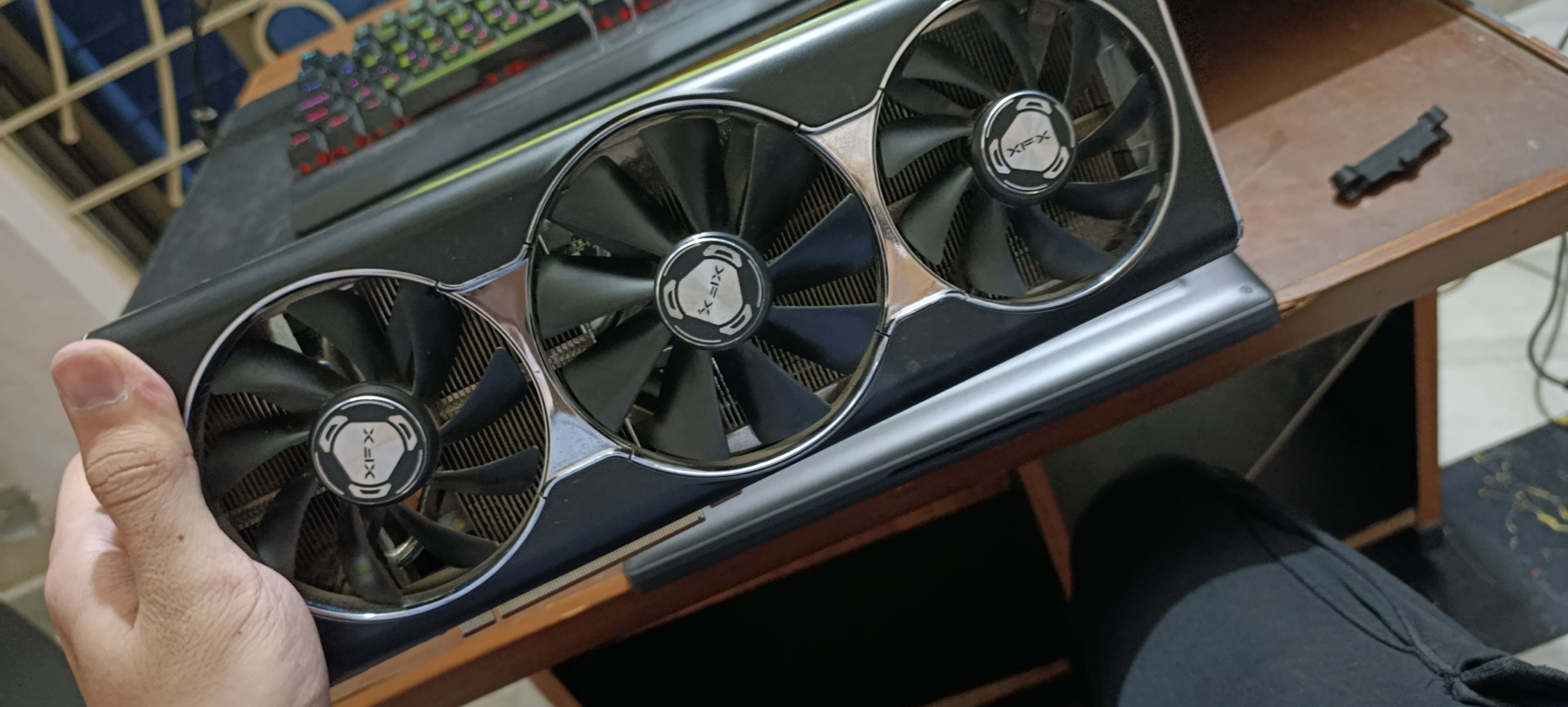
The card ran clean for months. Thermals were within normal limits, and there wasn't a single flicker of visual corruption. Then, while loading up a match in Apex Legends, the sudden shift from low load menu rendering to high intensity 3D rendering triggered an instant, unprompted system restart.
When I rebooted, Windows loaded to the desktop, but the moment the display driver initialized high-performance clocks, the system shut down again. After that second shutdown, the card was completely dead:
- No display output across any DisplayPort or HDMI port.
- Zero fan spin on startup.
- The motherboard failed to complete its PCIe handshake during POST.
A local repair technician suspected a problem with the GPU package or core and recommended reballing. The reballing attempt didn't revive the card, and the technician concluded that the GPU core itself was likely defective.
I never got a definitive board-level diagnosis of exactly what failed inside the 5700 XT. The repair attempt didn't revive it, so I can't say with certainty whether the problem was the GPU die, its package, or another component on the board. All I know is that at no point did I see lines, missing textures, or flickering. The failure bypassed visual degradation entirely.
Why Visual Artifacts Happen (and Why They Don't Always Appear)
To understand why a card can die silently, it helps to understand what visual artifacts actually represent.
While artifacts typically point to memory subsystem instability, they can also be caused by GPU core instability, excessive overclocks or undervolts, driver problems, overheating, power instability, or even display output problems. When video RAM (VRAM) chips degrade or develop broken solder joints, the data being buffered for the frame buffer gets corrupted. The GPU renders exactly what the corrupted memory tells it to render, resulting in visual "garbage."
| Possible Problem | Common Symptoms |
|---|---|
| VRAM instability | Artifacts, corrupted textures, crashes |
| GPU/core instability | Driver crashes, freezes, black screens |
| Power-delivery problem | Shutdowns, reboots, failure to initialize |
| Display output problem | No signal from one or more ports |
A GPU die contains billions of transistors handling memory controllers, compute units, cache, and power regulation interfaces. Depending on the fault, a problem in the GPU's power delivery circuitry can cause anything from instability and driver crashes to a complete failure to initialize. You don't get artifacts because the card isn't running properly to begin with.
The False Alarm: Blaming the GPU Instead of the PSU
Hardware troubleshooting gets messy when secondary components mimic graphics card failure.
Earlier in my PC building journey, I ran a Sapphire Pulse AMD Radeon RX 580 paired with an entry-level power supply (a Corsair VS450). Over time, the system developed intermittent black screens. Sometimes a game would run smoothly for an entire week; other times, loading into a session caused an immediate black screen accompanied by looping audio, forcing a manual hard reset.
Because black screen crashes under load are a hallmark of GPU instability, I was convinced the RX 580 was dying. I came very close to selling the card for parts at a fraction of its value.
Before giving up on it, I took a gamble and replaced the power supply with a higher tier unit. The result? Replacing the PSU fixed the crashes entirely. That strongly pointed to the power supply or power delivery as the cause rather than the RX 580 itself. The RX 580 was in perfect working order.
What Real GPU Failure Looks Like (Beyond Artifacts)
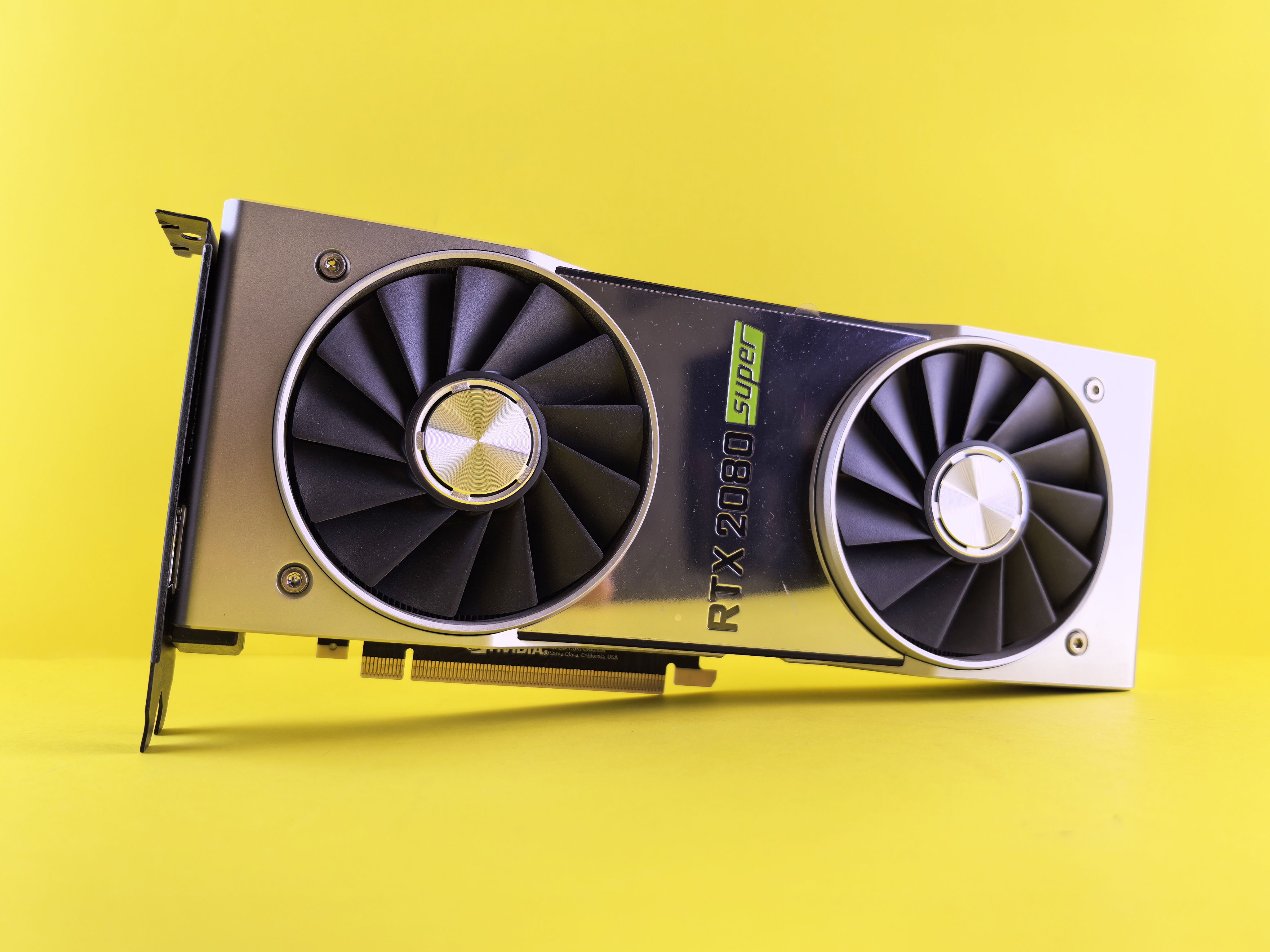
If you aren't seeing broken textures on screen, watch for these alternate symptoms of a failing or degraded graphics card:
- Driver Timeouts Under 3D Load: The screen turns black for a few seconds, recovers, and displays an AMD Driver Timeout or NVIDIA TDR (Timeout Detection and Recovery) error.
- Crash-to-Desktop (CTD) Without Error Codes: Games abruptly close straight back to your desktop during transitions between light rendering and heavy scenes.
- Hard System Reboots Under Transient Spikes: The entire PC abruptly cuts power and reboots with zero blue screen (BSOD), frequently triggered when uncapped framerates spike GPU power draw.
- Device Manager Error Code 43: Error Code 43 means Windows has stopped the device because it reported a problem. It can occur because of driver or firmware problems as well as underlying hardware faults, so it shouldn't be treated as proof of a dying GPU.
- No Signal While Fans Spin at 100%: The system boots, but the GPU fails to establish a display handshake, defaulting the cooling fans to maximum RPM as a failsafe.
A Systematic Diagnostic Process
Before declaring a graphics card dead or spending money on repairs, work through this diagnostic sequence:
1. Perform a Clean Driver Sweep with DDU
Corrupted display driver registries produce symptoms identical to hardware failure. Boot Windows into Safe Mode, run Display Driver Uninstaller (DDU) to completely scrub existing display drivers, and reinstall the latest stable WHQL driver release.
2. Verify Physical Power Delivery
Avoid daisy chained PCIe pigtail splitters on cards pulling over 200W. Run independent PCIe 8-pin cables directly from your power supply to each connector on the graphics card. Ensure the cables are seated flush without bending stress near the terminal pins.
3. Monitor Hotspot and VRAM Thermals
Open HWiNFO64 and run a sustained workload. A large and persistent difference between GPU temperature and hotspot temperature can indicate uneven cooler contact or thermal-interface problems, particularly when accompanied by unusually high hotspot temperatures or throttling.
4. Isolate the Workload (FurMark vs. 3DMark)
Different benchmarks can expose different stability problems. A card that survives one workload may still crash in another because the workloads exercise different combinations of clocks, voltage, memory, and power.
5. Cross Test in a Secondary System
The only definitive way to confirm a dead card is physical isolation. Install the suspected GPU into a known working PC with an adequate power supply. If the crashes, black screens, or boot failures follow the card, the GPU hardware is the root cause. If the card runs reliably in the second system, investigate your original system's power supply, RAM stability, or PCIe slot seating.
Is Component Level GPU Repair Worth It?
If your diagnostics confirm physical failure, professional repair options depend heavily on the nature of the damage:
- Minor electrical shorts: Blown SMD capacitors, failed input fuses, or broken fan headers are relatively inexpensive for a skilled micro-soldering technician to replace.
- VRAM replacement: Replacing a single failed memory chip using a BGA rework station is viable if the technician can identify the exact faulty memory channel using diagnostic software like MATS/MODS.
- Core silicon failure: If the GPU die itself has degraded internally, repairs are neither practical nor cost-effective. Replacing an entire graphics processor die generally costs more than purchasing a replacement card.
Unless the graphics card is an expensive flagship tier or protected by an active manufacturer warranty, spending substantial money on board-level diagnostics and reballing is rarely economical.
Diagnosing PC hardware requires resisting the urge to jump to conclusions based on a single symptom. A clean desktop display does not guarantee a healthy GPU, and a sudden black screen does not prove your graphics card is dead. Isolate each variable, inspect your power delivery, and verify your silicon under controlled conditions before spending money on replacements.